
Imagine a toolbox, with screws and batteries, power drills and more. Hiren’s BootCD is the same thing, but for computer geeks and IT people. It’s a portable Windows: a Windows PE live environment that starts from a USB drive and gives you tools to diagnose and fix your PC, even when Windows won’t start.
It boots the same way as a Windows installation USB, but instead of installing Windows, you get a full desktop with dozens of repair tools. Honestly, it has saved me from losing data several times in the past, and it’s the first thing I reach for when a PC won’t boot.
64-bit
at the time of writing
ISO file
only free, legal tools
What is Windows PE?
Windows PE (Preinstallation Environment) is a small version of Windows that Microsoft made for installing and repairing Windows. It’s actually what runs behind the scenes when you use a Windows installation USB.
The trick is that it runs completely from the USB and your RAM. It doesn’t use the Windows installed on your PC at all, so it works even when that Windows is broken, infected or won’t boot. And when you turn the PC off, nothing stays behind.
Hiren’s BootCD PE takes that idea and adds a normal desktop, a Start menu, drivers for Wi-Fi, sound and graphics, and a huge collection of free tools.
A bit of history
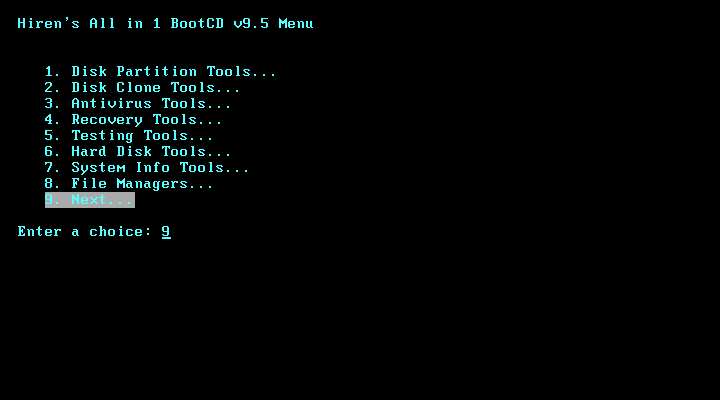
The original Hiren’s BootCD was a legendary rescue CD made by a developer called Hiren. IT technicians carried it everywhere in the 2000s. It booted into a text menu full of DOS and Linux tools, and later a mini Windows XP. The last official version, 15.2, came out in November 2012.
Some of the programs on those old discs weren’t free to share, and the CD stopped being updated, so fans of the project created Hiren’s BootCD PE: a modern version based on Windows PE that only includes free and legal software.
What you need
- A USB drive of 8 GB or more (everything on it will be erased)
- A working Windows PC to create the USB
- Rufus (free)
- The Hiren’s BootCD PE ISO from the official site: hirensbootcd.org
- The PC you want to fix needs at least 4 GB of RAM and should support UEFI (almost every PC from the last 10 years does)
How to create the Hiren’s BootCD USB
Download the ISO. Go to hirensbootcd.org/download and download HBCD_PE_x64.iso (about 3 GB).
Optional but smart: check the file isn’t corrupted or modified. On Windows, open Command Prompt in your Downloads folder and run:
certutil -hashfile HBCD_PE_x64.iso SHA256The result should match the SHA-256 shown on the download page.
Open Rufus and turn on “Dual UEFI/BIOS” mode. Plug in your USB drive and open Rufus. Before selecting anything, press Alt + E. At the bottom of Rufus you should see “Dual UEFI/BIOS mode enabled”. This makes the USB work on both new and old PCs. Rufus remembers this setting, so you only need to do it once.
Select the ISO and the settings. Check your USB is selected under Device, click Select and choose HBCD_PE_x64.iso. Then set:
- Partition scheme: MBR
- File system: FAT32 (or Large FAT32 if your USB is 32 GB or bigger; if you don’t see that option, press Alt + L)
- Volume label: anything you like, for example HIRENS
These are the settings the Hiren’s BootCD team recommends for the best compatibility.
Click Start. Rufus warns that the USB will be erased: click OK. Newer versions of Rufus may also show a “Revoked UEFI bootloader detected” warning; the Hiren’s team says you can click OK and continue. It takes around 10 minutes, depending on your USB drive.
Boot the broken PC from the USB. Plug the USB into the PC you want to fix, turn it on and press the boot menu key (F12, F9, F11, Esc… it depends on the brand). I have a full table of boot menu keys in my Windows installation USB tutorial. Choose your USB from the list.
If the PC refuses to start from the USB with a security or Secure Boot error, enter the BIOS (usually F2 or Del), temporarily turn off Secure Boot, and turn it back on when you’re finished.
Wait for the desktop. Hiren’s loads into your RAM and tries to install drivers for your graphics, sound, Wi-Fi and Ethernet. After a minute or two you get a normal Windows desktop. Connect to Wi-Fi from the taskbar if you need internet, and open the Start menu: all the tools are organised by category.
What tools does Hiren’s BootCD PE include?
This is where the toolbox really shows. Version 1.0.8 comes with almost 80 programs. These are the categories and the tools I find most useful in each one:
Data recovery: get your files back
| Tool | What it does |
|---|---|
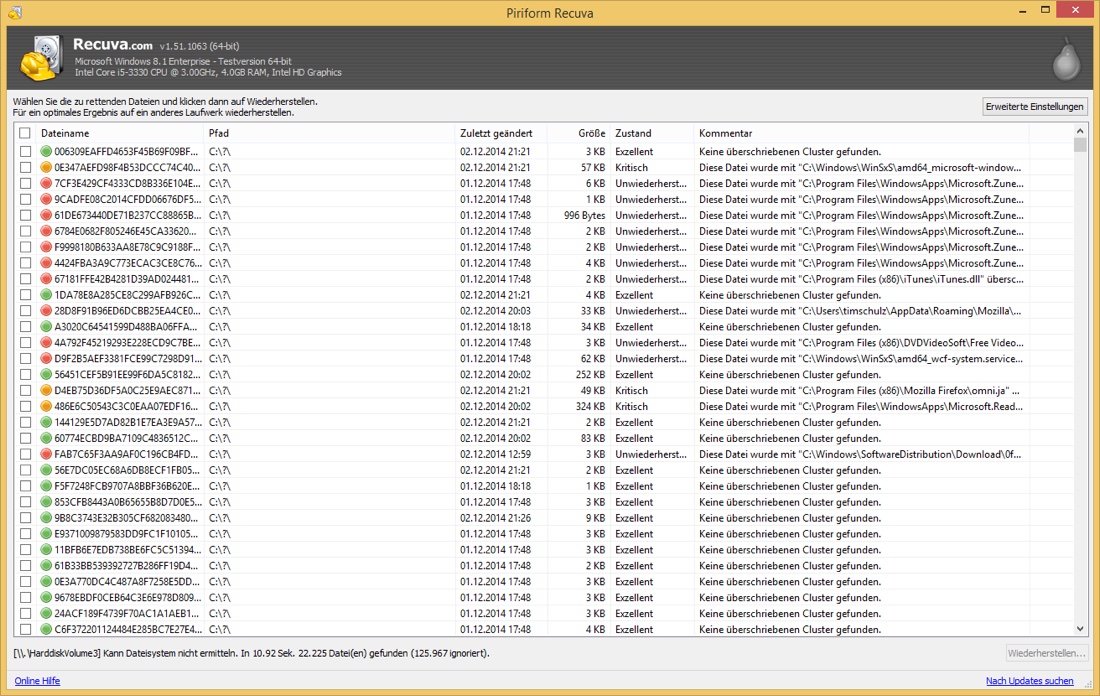
| Recuva | Recovers files you deleted by mistake, even from a USB or SD card |
| PhotoRec | Digs out photos, videos and documents from damaged or formatted drives |
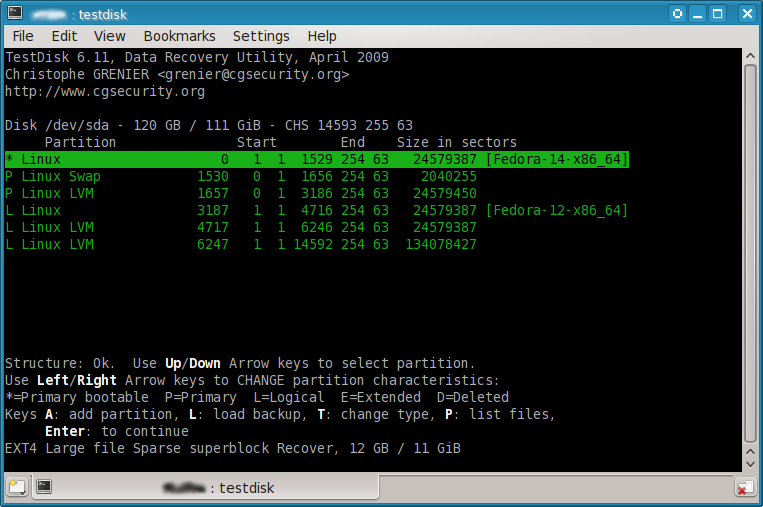
| TestDisk | Finds and rebuilds lost partitions, so a “disappeared” drive can come back |
| DMDE, Puran File Recovery, Lazesoft Data Recovery | More powerful recovery when the simple tools don’t find your files |
| Unstoppable Copier | Copies files from a dying disk, skipping the unreadable parts instead of freezing |
| Linux Reader, AppleFS for Windows | Read drives formatted for Linux or Mac |
Disk health and diagnostics
| Tool | What it does |
|---|---|
| CrystalDiskInfo | Shows if your SSD or hard drive is healthy, with a simple Good / Caution / Bad rating |
| HD Tune, HDDScan, Victoria | Scan the disk surface for bad sectors and test speed |
| GSmartControl, WD Data Lifeguard Diagnostics | Run the disk’s own built-in self-tests |
| CheckDisk GUI | Runs Windows’ disk repair (chkdsk) with buttons instead of commands |
Backup and cloning
| Tool | What it does |
|---|---|
| Macrium Reflect, AOMEI Backupper, Acronis | Make a full image backup of a disk, or clone an old disk to a new SSD |
| Lazesoft Disk Image & Clone, DriveImage XML, Drive Snapshot | Other imaging and cloning tools |
Partitions
| Tool | What it does |
|---|---|
| AOMEI Partition Assistant, DiskGenius, EaseUS Partition Master, Macrorit | Resize, move, merge, create and delete partitions, or convert between MBR and GPT |
Fixing Windows startup
| Tool | What it does |
|---|---|
| Lazesoft Windows Recovery | Repairs common “Windows won’t boot” problems |
| BootIce, EasyBCD | Edit and repair the boot records and the Windows boot menu |
| WinNTSetup | Installs Windows onto a disk directly from Hiren’s |
Passwords and product keys
| Tool | What it does |
|---|---|
| Lazesoft Password Recovery, NT Password Edit, Windows Login Unlocker | Reset a forgotten password on a local Windows account |
| ShowKeyPlus | Shows the Windows product key stored in your PC |
Antivirus
| Tool | What it does |
|---|---|
| ESET Online Scanner, McAfee Stinger | Scan the PC for malware while the infected Windows is not running, so the malware can’t defend itself |
Hardware information and system tools
| Tool | What it does |
|---|---|
| CPU-Z, GPU-Z, HWiNFO, Speccy | Show exactly what hardware the PC has, plus temperatures |
| Sysinternals Suite, PowerShell 7 | Microsoft’s advanced tools for power users |
| Registry Backup, Regshot | Back up and compare the Windows registry |
| Aqua Key Test | Tests every key on the keyboard |
Disk security
| Tool | What it does |
|---|---|
| Eraser, HDD Low Level Format Tool | Wipe a disk securely before selling or recycling a PC |
| VeraCrypt | Open or create encrypted drives |
Internet and remote help
| Tool | What it does |
|---|---|
| Google Chrome, Firefox | Browse the web to search for errors or download drivers |
| PENetwork | Set up Wi-Fi and network connections |
| AnyDesk, Aero Admin | Let someone you trust help you remotely |
| WinSCP, PuTTY | Copy files to a server, or connect to it over SSH |
Everyday programs
7-Zip, Notepad++, VLC, IrfanView, Sumatra PDF, FreeOffice, Total Commander, TreeSize (find what’s filling your disk), HxD (hex editor), WinMerge, Rufus and more. So even inside a rescue environment you can open almost any file.
How I use it: rescuing files from a PC that won’t start
This is the situation where Hiren’s has saved me the most. Windows is broken, the PC won’t start, and the important files are still on the disk. Here’s what to do:
- Boot from the Hiren’s USB (steps above).
- Check the disk health first. Open CrystalDiskInfo. If the disk says Caution or Bad, it might be dying, so copy the most important files first and don’t run long scans on it.
- Plug in an external drive or a second USB to save the files to.
- Open File Explorer (or Total Commander). Your Windows drive appears like any other drive, usually with a different letter than C:. Go to
Users\YourNameand copy Desktop, Documents, Pictures, Downloads and anything else you need. - If the disk is failing and copying freezes, use Unstoppable Copier instead: it skips the damaged parts and keeps going.
- If files were deleted, or the drive shows as empty or “RAW”, try Recuva or PhotoRec for files, and TestDisk for lost partitions. Always save recovered files to a different drive, never to the same one.
TestDisk is also how you can save your files after a virus like MEMZ wipes the start of the disk: the files are usually still there, just without a partition table pointing to them.
A word about the password tools
The password reset tools are great when you forget the password of your own PC, or when a family member asks for help with theirs. Using them on someone else’s computer without permission is illegal. They only work on local accounts: if the PC uses a Microsoft account (an email to log in), reset the password at account.live.com/password/reset instead.
This is also a good reminder of why BitLocker encryption matters: without it, anyone with a USB like this can read your files.
Troubleshooting
The PC doesn’t boot from the USB
Make sure you chose the USB in the boot menu, try another USB port (preferably one directly on the PC), and turn off Secure Boot temporarily. If it still fails, recreate the USB with MBR + FAT32 and the Dual UEFI/BIOS mode from step 2.
No Wi-Fi or internet
Hiren’s may not have a driver for every Wi-Fi card. Try an Ethernet cable, or connect your phone by USB and turn on USB tethering.
It’s very slow or freezes while loading
The PC needs at least 4 GB of RAM. A USB 3.0 drive in a USB 3.0 port loads much faster than an old USB 2.0 stick.
My files aren’t on the C: drive
Inside Hiren’s, drive letters change: X: is Hiren’s itself, and your Windows drive might be D: or E:. Look for the drive that has the Users and Windows folders.
FAQ
Is Hiren’s BootCD legal and safe?
Yes. Hiren’s BootCD PE only includes free and legal software. Just make sure you download it from the official site, hirensbootcd.org.
Does it change anything on my PC?
Not by itself: it runs from the USB and your RAM. Only the tools you use can change things, so be careful with partition and wipe tools, and back up first.
Can I still use the old Hiren’s BootCD 15.2?
It’s still on the official “Old Versions” page for very old PCs, but it hasn’t been updated since 2012 and doesn’t understand modern hardware well. For anything from the last 10 years, use the PE version.
Can I keep my own files on the Hiren’s USB?
It’s better to use a separate USB or external drive for your files, so you never mix rescued files with the rescue tool.
Sources and more info
- Hiren’s BootCD PE: official website
- Hiren’s BootCD PE: download and full list of tools
- Hiren’s BootCD PE: official USB booting guide
- Microsoft: What is Windows PE?
- Wikipedia: Hiren’s BootCD
WinLuisPlus is not affiliated with Hiren’s BootCD PE or the makers of the tools it includes. All product names are trademarks of their owners.
Questions? Ask here
Stuck on a step or got an error? Sign in with Discord and ask below, and I’ll help you. Tell me your Windows version and the exact error message. Spam and insults are removed.