
Windows 11 is well known for its strict requirements. Because of them, millions of perfectly working computers can’t upgrade, and since Windows 10 stopped getting free updates on October 14, 2025, a lot of people are stuck. But there’s a simple trick that lets you install Windows 11 anyway, and keep all your files and apps.
In this guide I’ll show you how I do it with a free tool called Rufus: first how to check what your PC is missing, then the full upgrade step by step, and finally what to expect afterwards and how to fix the most common errors.
What you need
- A Windows 11 ISO (microsoft.com)
- Rufus (https://rufus.ie/)
- An 8GB USB drive or larger (everything on it will be erased)
- Your PC running Windows 10 (64-bit), with at least 30GB of free space on C:
- About an hour, most of it waiting
Why does Windows 11 say my PC isn’t supported?
Microsoft’s installer checks your PC before it lets you upgrade. Most of the checks are about security features and newer processors, not about whether your PC is actually fast enough. Rufus can switch most of them off:
| Requirement | What it means | Can Rufus skip it? |
|---|---|---|
| TPM 2.0 | A security chip used for encryption and Windows Hello | Yes |
| Secure Boot | Stops untrusted software from loading at startup | Yes |
| Supported CPU | Roughly Intel 8th gen / AMD Ryzen 2000 or newer | Yes |
| 4GB of RAM | Memory | Yes (but 8GB feels much better) |
| 64GB of storage | Space for Windows itself | No, Windows really needs the space |
| SSE4.2 and POPCNT | CPU instructions needed since Windows 11 24H2 | No, very old CPUs (around 2008 and older) can’t run it at all |
Step 0: check your PC first
Before downloading anything, it’s worth knowing exactly what your PC is missing. Press Win + R and type one of these:
tpm.msc: shows if you have a TPM and which version. If it says “Compatible TPM cannot be found”, you don’t have one (or it’s turned off in the BIOS).msinfo32: look at BIOS Mode (UEFI or Legacy), Secure Boot State and Processor.
You can also install Microsoft’s PC Health Check app, which tells you which requirement fails. Sometimes the fix is just turning on TPM (called PTT on Intel, fTPM on AMD) in the BIOS, and then you don’t need any trick at all.
Back up your files
This method keeps your files and apps, but any big update can fail. Copy your Desktop, Documents and Pictures to an external drive or OneDrive before you start. If your PC uses BitLocker, save your recovery key too (you can find it at aka.ms/myrecoverykey).
Steps
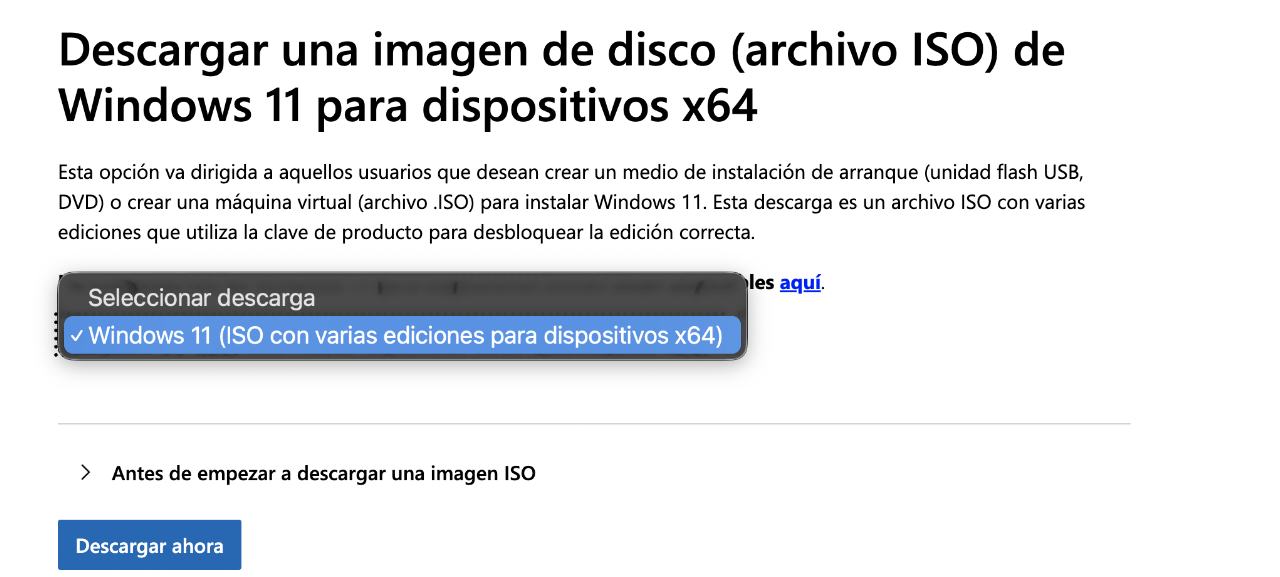
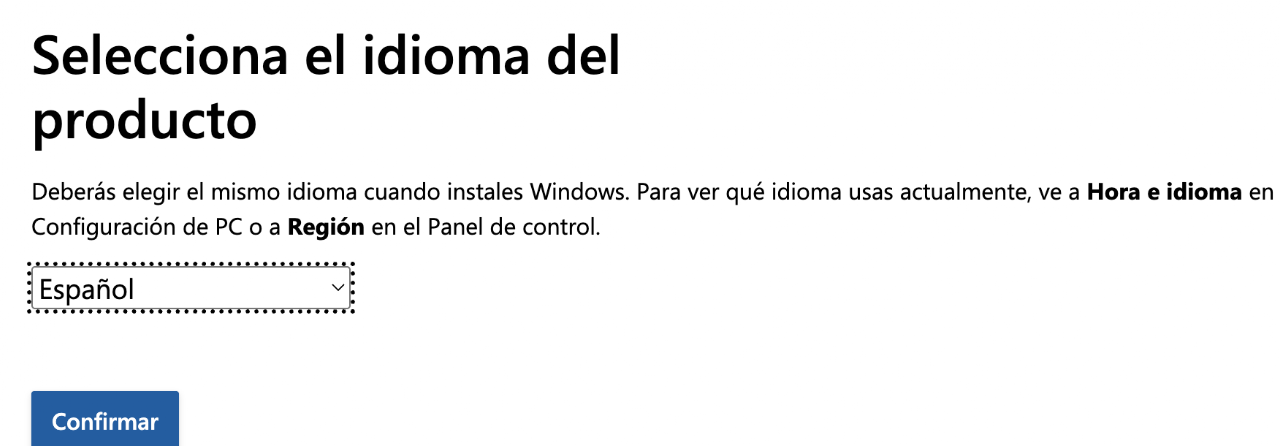
Download a Windows 11 ISO image. On Microsoft’s page, scroll down to “Download Windows 11 Disk Image (ISO) for x64 devices”, choose Windows 11, click Download, pick your language and download the 64-bit file.
Important: pick the same language your Windows 10 uses right now. If the language is different, the option to keep your files and apps won’t appear later.

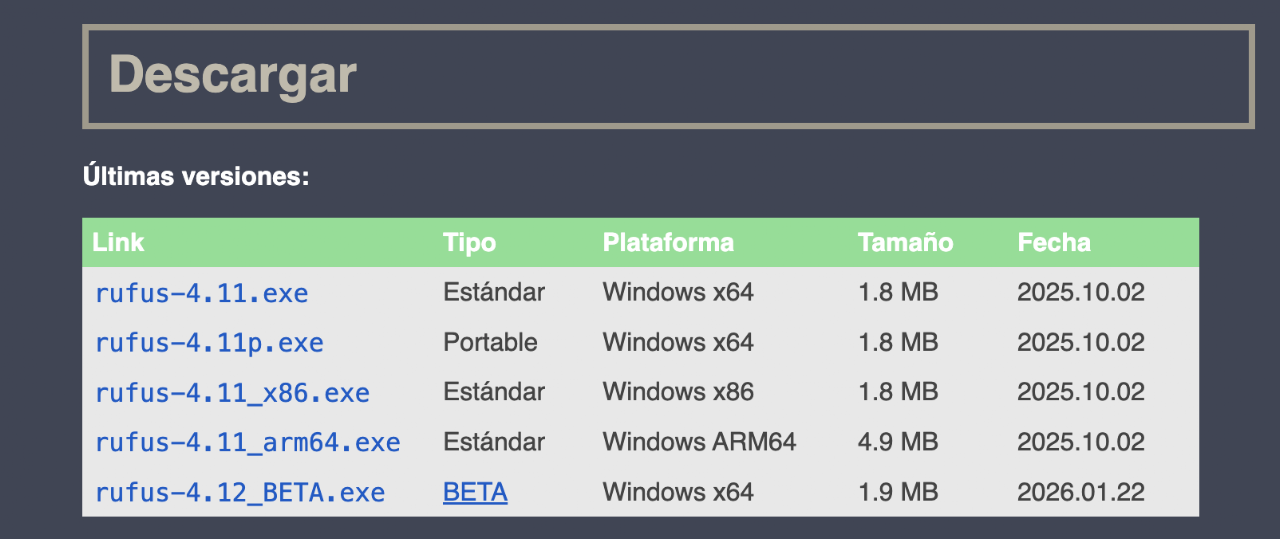
Download Rufus. Rufus is a free, open-source tool that puts the Windows 11 installer on a USB drive, and it can remove the requirement checks while doing it.
Download the latest version from the official site only (in my screenshot it’s rufus-4.11.exe). Fake “Rufus” downloads on other sites sometimes come with malware.
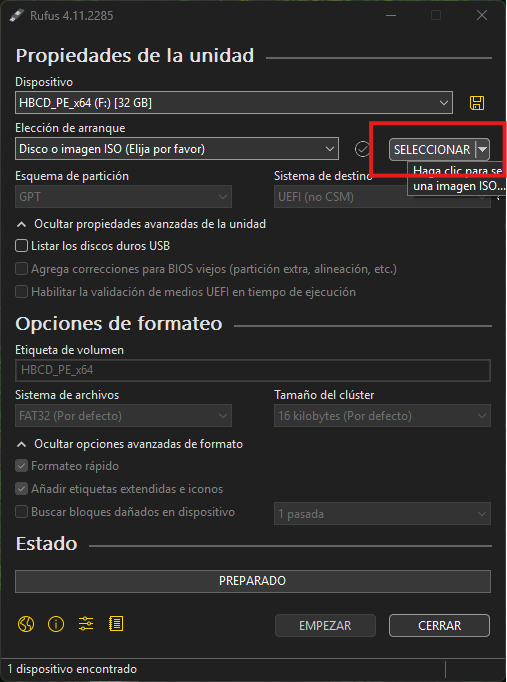
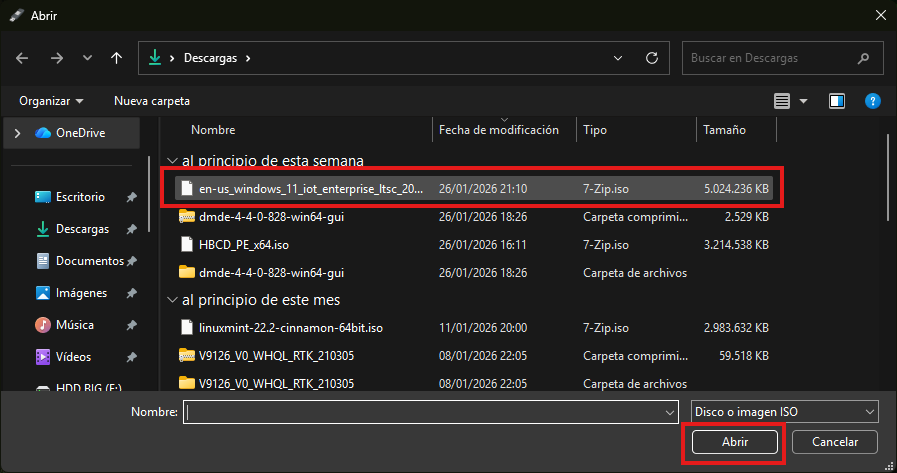
Create the USB with the requirements removed. Plug in the USB drive and open Rufus. It will ask for administrator permission, click Yes. Check that the right USB is selected under Device, click Select and choose your Windows 11 ISO. Leave the other settings as they are and click Start.
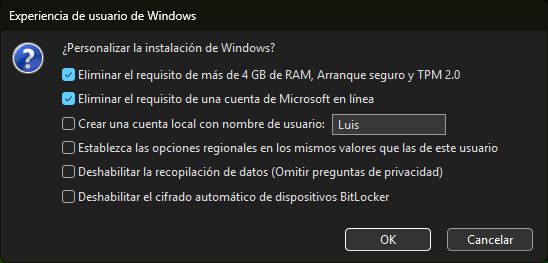
A “Windows User Experience” window will open. Tick “Remove requirement for 4GB+ RAM, Secure Boot and TPM 2.0”. The other options (local account, data collection, etc.) only matter for clean installs, so you can leave them. Click OK and Rufus will start writing the ISO to the USB drive.
Run the setup from inside Windows. When Rufus says READY, open the USB drive in File Explorer and double-click setup.exe. Don’t boot from the USB: that would be a clean install and erase everything.
When the installer asks what to keep, choose “Keep personal files and apps”. If the installer complains about something, click “Change how Setup downloads updates” and choose “Not right now”, then continue.
Let it install. Your PC will restart several times. Depending on how fast your PC is, it can take 30 to 90 minutes. Don’t turn it off, and if it’s a laptop, keep the charger plugged in.
Finish setting it up. Once you see the Windows 11 desktop, go to Settings → Windows Update and install everything it finds, including optional driver updates. Then check Settings → System → Activation: if your Windows 10 was activated, Windows 11 activates automatically with the same digital license.
What to expect on an unsupported PC
- A “System requirements not met” message may appear in Settings. It’s just a notice, it doesn’t limit anything.
- Updates: Microsoft says unsupported PCs aren’t guaranteed updates. Normal monthly security updates usually keep coming, but for the big yearly versions you may need to repeat this guide with a new ISO.
- Changed your mind? For 10 days you can go back to Windows 10 from Settings → System → Recovery → Go back.
Troubleshooting
“This PC doesn’t currently meet Windows 11 system requirements”
You’re running the setup from the original ISO, or the requirements box wasn’t ticked in Rufus. Create the USB again (step 3) and run setup.exe from the USB.
“Keep personal files and apps” is greyed out
The ISO language is different from your current Windows, or you have 32-bit Windows 10 (Windows 11 is 64-bit only, so it needs a clean install). Download the ISO again in the right language.
The installation goes back to Windows 10
Unplug extra USB devices (except the installer), uninstall third-party antivirus for a moment, free up space on C: and try again. Usually a driver or an antivirus is to blame.
“The processor isn’t supported” even with Rufus
Your CPU is missing the SSE4.2 or POPCNT instructions. That’s a hard limit: this PC can’t run current versions of Windows 11.
FAQ
Is this legal?
Yes. You’re installing Windows on your own PC with your own license. Microsoft just doesn’t officially support it on that hardware.
Do I need to buy a new license?
No. If your Windows 10 is activated, Windows 11 activates with the same digital license after the upgrade.
Will my PC be slower?
On most PCs that ran Windows 10 well, Windows 11 feels about the same. With 4GB of RAM it can feel slow, so 8GB or more is a good idea.
Can I do a clean install instead?
Yes: boot from the same USB instead of running setup.exe. My guide on creating a Windows installation USB explains how to boot from it. A clean install erases the drive, so back up first.
Questions? Ask here
Stuck on a step or got an error? Sign in with Discord and ask below, and I’ll help you. Tell me your Windows version and the exact error message. Spam and insults are removed.