
A Windows installation USB is the first tool anyone who fixes PCs should have. With it you can do a clean install, reinstall Windows when something breaks, or repair a PC that won’t start. Creating one is very easy and takes about 15 minutes. You don’t need any advanced knowledge.
What you need
- An 8GB USB drive or larger (everything on it will be erased)
- A PC with Windows already installed
- Rufus (free, rufus.ie)
- A Windows ISO. I recommend Windows 11, because Windows 10 stopped getting free updates in October 2025
Rufus or Microsoft’s Media Creation Tool?
Microsoft has its own official tool, the Media Creation Tool, and it works fine. I still use Rufus because:
- It’s faster, and it works with any ISO (Windows 10, 11, even Linux).
- It can remove the Windows 11 requirements (TPM, Secure Boot, CPU) for older PCs.
- It can skip the Microsoft account and let you create a local account.
- It’s tiny, open source and doesn’t even need to be installed.
Steps
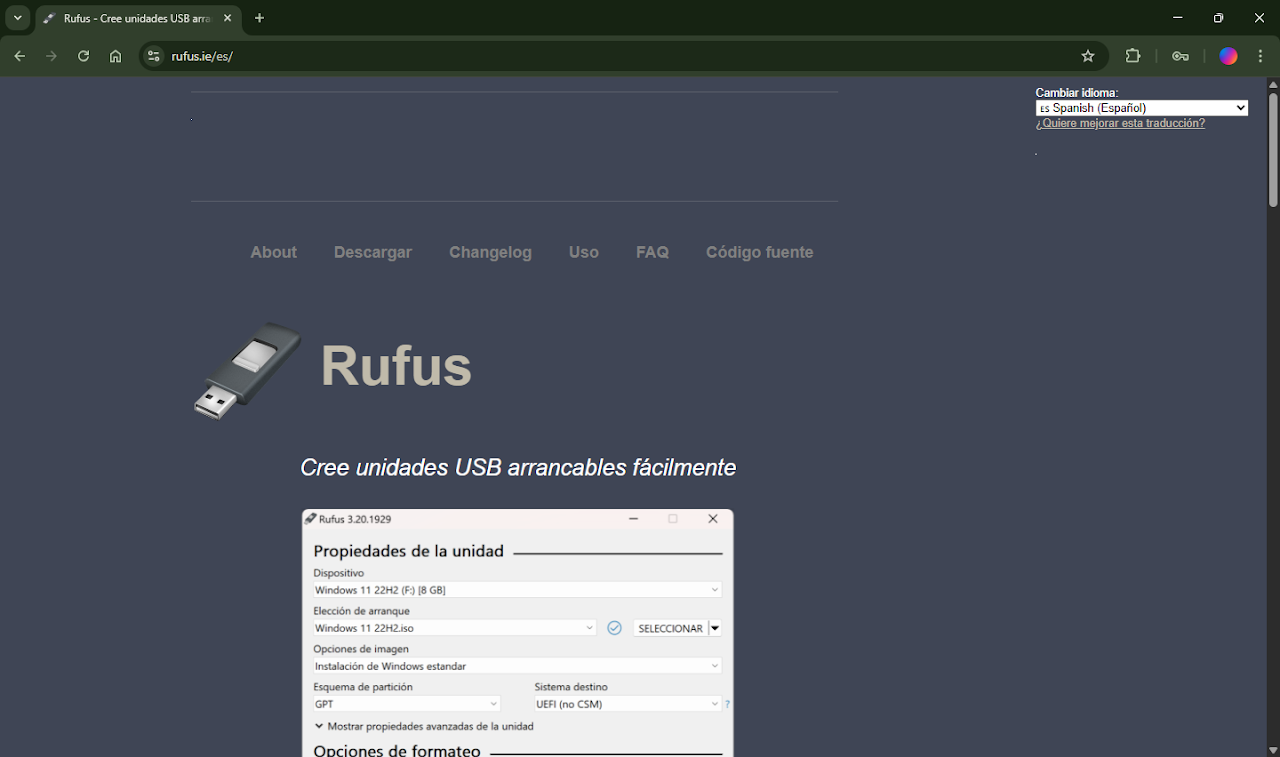
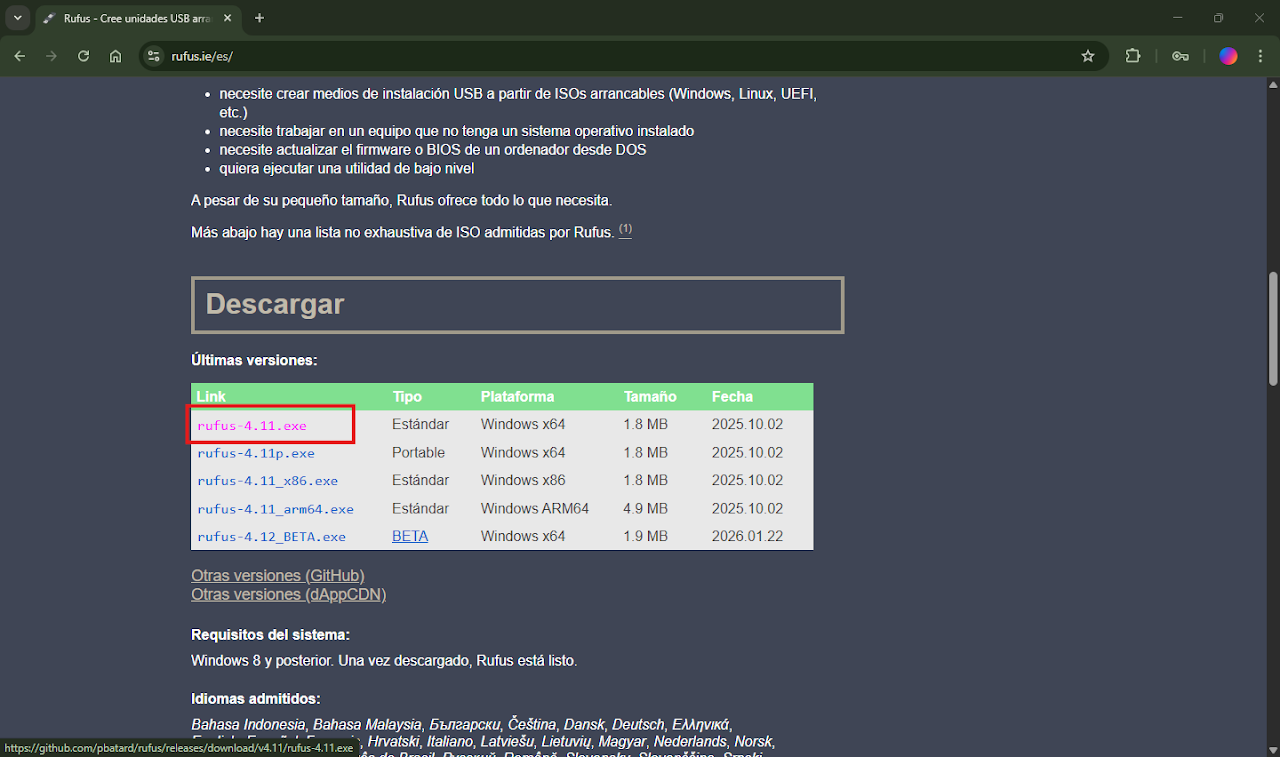
Download Rufus. Go to https://rufus.ie/ and download the latest version. Only download it from the official site, because fake copies on other websites can come with malware.
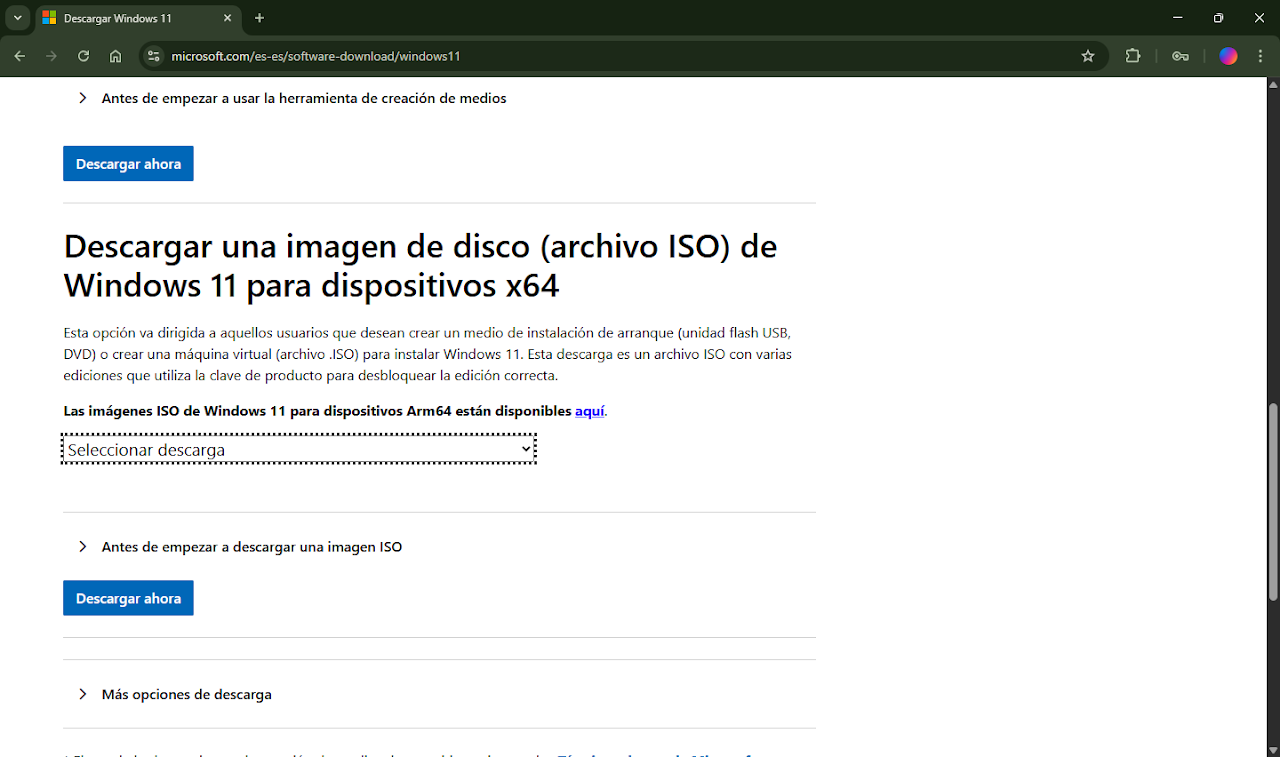
Download a Windows image. For example Windows 11 from Microsoft’s download page. Scroll down to the “Disk Image (ISO)” section, pick your language and download the 64-bit version. It’s around 6–7GB, so it can take a while.
Open Rufus. Plug the USB drive into your PC and open Rufus. It will ask for administrator permission, click “Yes”. Under Device, make sure your USB drive is the one selected.

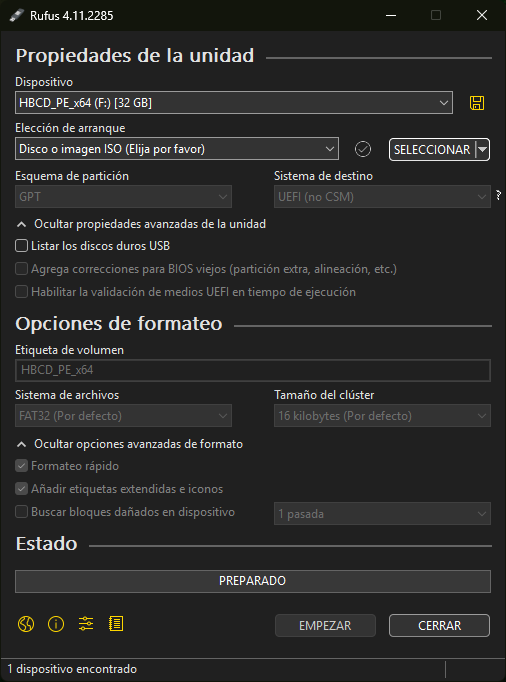
Select the ISO. In Rufus, click “Select” and choose the ISO you downloaded. Rufus fills in most of the settings for you.
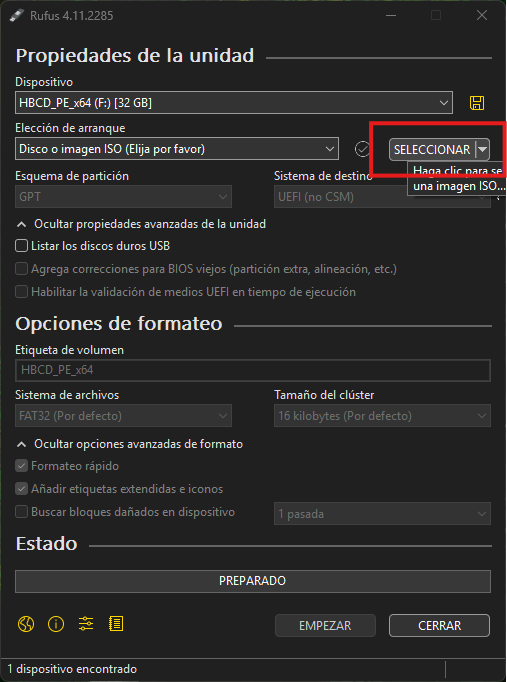
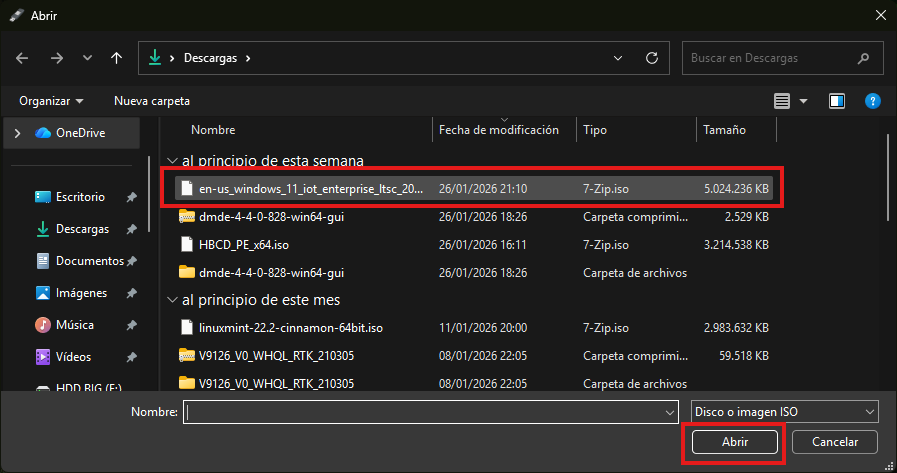
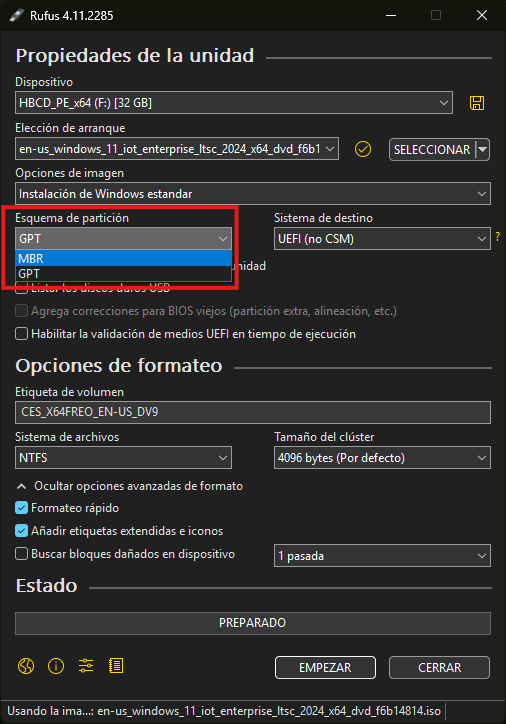
Choose the partition scheme: GPT or MBR. This depends on the PC where you’ll install Windows, not the one you’re using now:
- GPT is for UEFI PCs. That’s almost every PC made since around 2013, and it’s required for Windows 11.
- MBR is for old PCs with a classic BIOS (also called Legacy or CSM).
If you’re not sure, press Win + R on that PC, type msinfo32 and look at “BIOS Mode”. You can also enter the BIOS by pressing F2 at startup (if F2 doesn’t work, search online for your PC’s brand and its BIOS key).
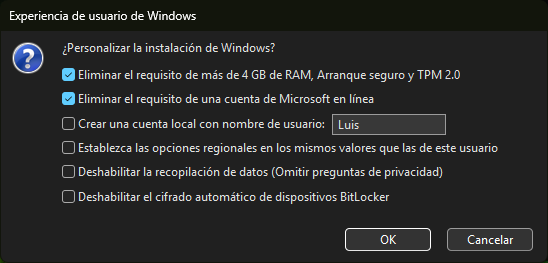
Pick the Windows options. If you downloaded Windows 11, this window appears when you click “Start”. These are the options and when I use them:
- Remove requirement for 4GB+ RAM, Secure Boot and TPM 2.0: lets you install Windows 11 on older PCs. My full guide is here: How to install Windows 11 on an unsupported PC.
- Remove requirement for an online Microsoft account: useful if you want a local account, or the PC has no internet during setup.
- Create a local account with username: creates the account for you automatically.
- Disable data collection: skips the privacy questions.
- Disable BitLocker automatic device encryption: I recommend it if you don’t know what BitLocker is, so you don’t get locked out of your own drive.
Click OK.
Wait for Rufus to finish. It usually takes 5–15 minutes. A USB 3.0 drive in a blue USB port is much faster than an old USB 2.0 one. When the bar says READY, your installation USB is done. Enjoy!
How to boot from the USB
Plug the USB into the PC where you want to install Windows, turn it on, and press the boot menu key over and over until a menu appears. Then choose your USB (on UEFI PCs it usually starts with “UEFI:”).
| Brand | Boot menu key |
|---|---|
| Dell | F12 |
| HP | F9 (or Esc, then F9) |
| Lenovo | F12 (some laptops have a small Novo button) |
| ASUS | F8 on desktops, Esc on laptops |
| Acer | F12 (sometimes it has to be enabled in the BIOS first) |
| MSI | F11 |
| Gigabyte | F12 |
Trick if no key works: if Windows still starts, hold Shift while clicking Restart, then go to “Use a device” and choose the USB.
Troubleshooting
The USB doesn’t appear in the boot menu
The partition scheme probably doesn’t match the PC: a USB made with MBR won’t show on a UEFI-only PC, and the other way around. Make it again with the right option from step 5. Also try a different USB port, ideally one directly on the PC and not on a hub.
“Windows cannot be installed to this disk”
This error mentions “GPT partition style” or “MBR partition table”. It means you booted the USB in the wrong mode. In the boot menu, choose the entry that starts with “UEFI:”. If it still fails and you’re doing a clean install anyway, you can delete all partitions on that disk in the installer. That erases everything on it, so back up first.
Rufus doesn’t show my USB drive
Rufus hides external hard drives by default so you don’t erase them by mistake. Open “Show advanced drive properties” and tick “List USB Hard Drives”. If it’s a normal USB stick, try another port or another drive.
It’s very slow or shows a write error
Cheap or old USB drives fail a lot. Try a different one, preferably USB 3.0.
FAQ
Can I use the same USB on several PCs?
Yes, the USB works on any compatible PC. Each PC still needs its own Windows license.
Do I need a product key?
Not during the installation: click “I don’t have a product key”. If that PC had activated Windows before, it reactivates automatically when it connects to the internet.
Is Rufus safe?
Yes. It’s free and open source, made by developer Pete Batard, and used by millions of people. Just download it from rufus.ie.
Can I still store files on the USB?
It’s better not to while it’s an installer. When you don’t need it anymore, you can format it and use it normally again.
Questions? Ask here
Stuck on a step or got an error? Sign in with Discord and ask below, and I’ll help you. Tell me your Windows version and the exact error message. Spam and insults are removed.