
In this tutorial I’ll show you how to install lots of apps at once. It’s super useful right after installing Windows, when you need your browser, 7-Zip, VLC, Discord and everything else, and you don’t want to spend an hour clicking “Next”.
What you need
- A PC with Windows 10 or 11
- Ninite (https://ninite.com/), or WinGet, which is already built into Windows (explained below)
- An internet connection
Have you ever bought a computer and thought “I have to set everything up and it’s going to take forever”? That’s why Ninite exists.
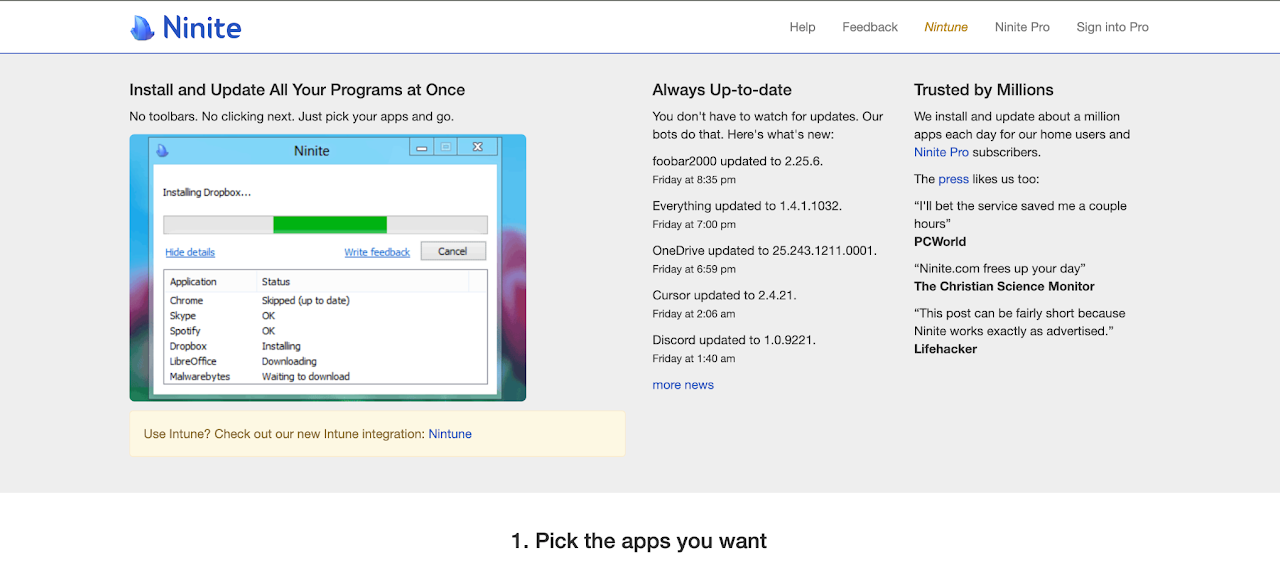
Ninite is a website where you tick the programs you want and get one small installer that installs all of them at once, in the background, with no questions.
Why I recommend Ninite
- No clicking: it installs everything with the default settings while you do something else.
- No junk: many free programs try to sneak in toolbars or “offers” during setup. Ninite automatically says no to all of them.
- Official downloads: it gets each program from its official source and checks the file’s signature before installing.
- Always the latest version: the installer you download doesn’t contain the apps. It downloads the newest version every time you run it.
- Free for home use.
Steps
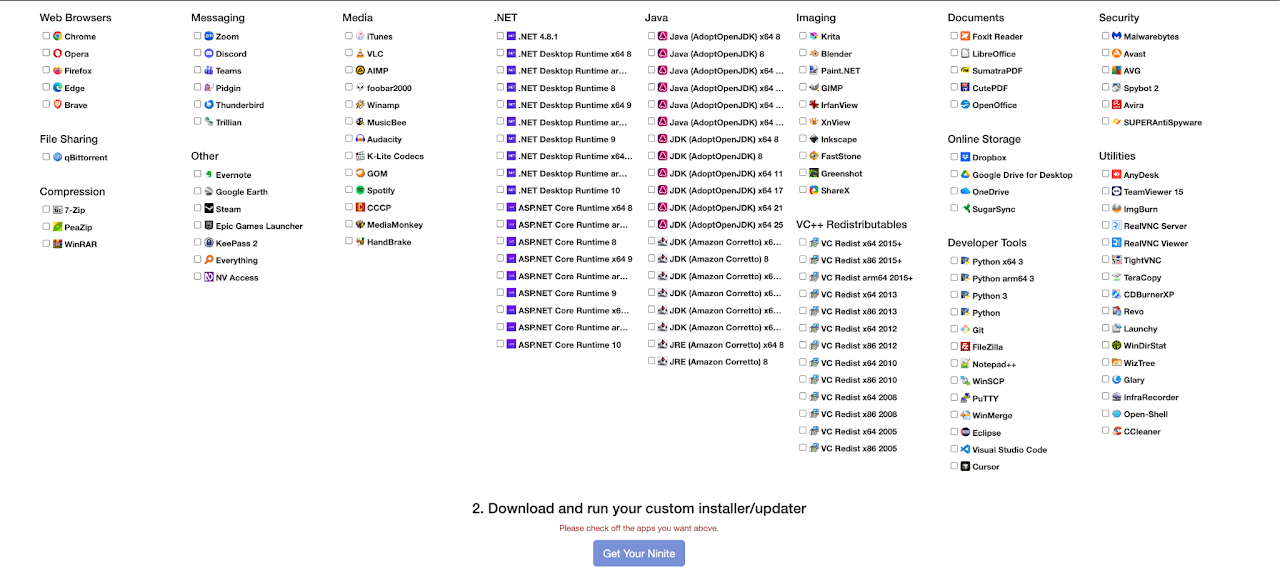
Pick your apps. Go to ninite.com and tick the programs you want. Not sure what to pick for a fresh PC? These are good basics:
- Browser: Chrome or Firefox
- Files: 7-Zip (opens .zip, .rar and .7z files)
- Videos: VLC (plays almost any video format)
- Chat and games: Discord, Steam
- Tools: Notepad++ (a much better Notepad)
Download the installer. Scroll down and click “Get Your Ninite”. A small file downloads, named after the apps you chose (for example “Ninite Chrome Discord VLC Installer.exe”).
Run it. Open the downloaded file and click Yes on the administrator permission prompt.
Wait. Ninite downloads and installs the latest version of each program, one after another. You can keep using the PC while it works.
Done, everything is installed. Tip: keep the Ninite installer file. If you run it again in a few months, it updates all those apps to their newest versions, and it skips the ones that are already up to date.
If you have any problem or question, feel free to contact me at [email protected]
Alternative: WinGet, already built into Windows
Windows 10 and 11 come with a command-line tool called WinGet. It does the same thing as Ninite, with thousands of apps available, but you type commands instead of ticking boxes. Right-click the Start button, open Terminal and type:
winget install -e --id Google.Chrome
winget install -e --id 7zip.7zip
winget install -e --id VideoLAN.VLC
winget install -e --id Discord.Discord
Other useful commands:
winget search obs: finds an app and shows its ID.winget upgrade --all: updates every app WinGet knows about, even ones you didn’t install with it.
The first time you use it, it asks you to accept the terms of its app sources: type Y and press Enter.
| Ninite | WinGet | |
|---|---|---|
| How you use it | Tick boxes on a website | Type commands |
| Number of apps | Around 100 popular ones | Thousands |
| Updating apps | Run the installer again | winget upgrade --all |
| Best for | Beginners, quick setups | People who like the terminal |
Troubleshooting
An app says “Skipped”
Ninite skips apps that are already installed and up to date. That’s normal.
An app says “Failed”
Usually the app was open while Ninite tried to update it. Close it and run the installer again.
My antivirus warned me
That’s rare with Ninite. Make sure you downloaded it from ninite.com and not from another site.
How do I uninstall the apps?
Ninite only installs. To remove an app, go to Settings → Apps → Installed apps, or use winget uninstall.
FAQ
Is Ninite free?
Yes, for personal use. There’s a paid version, Ninite Pro, for companies that manage many PCs.
Is it safe?
Yes. It downloads each program from its official source, checks its signature and refuses extra offers. It’s a well-known tool that IT technicians have used for years.
Does it work on a brand new Windows install?
Yes, that’s the best moment to use it. If you’re reinstalling Windows, my guide on creating a Windows installation USB shows how to make the installer first.
Questions? Ask here
Stuck on a step or got an error? Sign in with Discord and ask below, and I’ll help you. Tell me your Windows version and the exact error message. Spam and insults are removed.